📧 Email Access
This guide explains how a Microsoft 365 administrator grants Docflo agents access to Outlook mailboxes, so the agent can read and send email on behalf of your users. One admin approval covers the whole tenant, so users don't each hit an approval screen when they connect their mailbox.
Role needed: Global Administrator or Application Administrator Time required: about 2 minutes
Why admin approval is needed
When a user tries to connect Outlook before the admin has approved Docflo, Microsoft shows a Need admin approval screen and stops the connection. This happens because Docflo requests mailbox permissions (read and send mail), which Microsoft always routes through an admin, however trusted the app is. Microsoft's user consent settings don't classify Mail.Read and Mail.Send as low-risk, so users can't consent for themselves.
Granting admin consent once removes this screen for everyone in your tenant.
Grant Access
Choose one of the two options below.
Option A: Direct consent link
This works immediately, even if the app has never been used in your tenant.
-
Sign in to Microsoft as a Global Administrator.
-
Open the following link, replacing the three placeholders:
https://login.microsoftonline.com/<your-tenant-domain>/v2.0/adminconsent?client_id=<APPLICATION_CLIENT_ID>&scope=https://graph.microsoft.com/.default&redirect_uri=<REDIRECT_URI>Placeholder Value <your-tenant-domain>Your own tenant domain, for example contoso.onmicrosoft.com<APPLICATION_CLIENT_ID>Provided by your Docflo contact <REDIRECT_URI>Provided by your Docflo contact -
Review the requested permissions and select Accept.
This is Microsoft's documented admin consent endpoint. The .default scope requests every permission already configured on the app, the same as clicking Grant admin consent in Option B.
Option B: Entra admin center
Use this option if you want to review the request in Microsoft's console before approving, or to check what has already been granted.
- Get the app into your directory. If nobody has tried to connect yet, have one person start the connection in Docflo. They will land on the Need admin approval screen. That is expected, and it registers the app in your tenant.
- In the Microsoft Entra admin center, go to Identity → Applications → Enterprise applications and search for the Docflo app (for example
docflo-source-share-point). - Select the app, then open Security → Permissions. All requested permissions are listed here.
- Click Grant admin consent for [your organization] and confirm.
See Microsoft's walkthrough: Grant tenant-wide admin consent to an application.
Requested Permissions
All requests go through a single Microsoft Graph app registration. Mail-only tenants never trigger the SharePoint permissions.
| Permission | Microsoft's name | Why Docflo needs it | Used for |
|---|---|---|---|
openid | Sign you in | Confirms identity during the connection | Outlook & SharePoint |
offline_access | Maintain access to data you have given it access to | Keeps the connection alive without repeated logins | Outlook & SharePoint |
User.Read | Sign in and read user profile | Matches the Microsoft account to the right Docflo user | Outlook & SharePoint |
Mail.Read | Read mail | Lets the agent read messages it is asked to summarize or reference | Outlook only |
Mail.Send | Send mail | Lets the agent send email on the user's behalf | Outlook only |
Files.Read | Read files | Reads documents from a connected SharePoint library | SharePoint source only |
Sites.Read.All | Read items in all site collections | Lists and reads the SharePoint sites configured as a document source | SharePoint source only |
Full definitions: Microsoft Graph permissions reference.
What Consent Does Not Do
- It doesn't connect any mailbox automatically. Each person still signs in and chooses to connect Outlook in Docflo.
- It doesn't go beyond the listed permissions. There is no admin directory access and no access to tenant settings.
Restricting Who Can Use the App
Admin consent for a Graph app applies tenant-wide. To limit who can actually use it:
- In Enterprise applications, open the Docflo app.
- Under Manage → Properties, set Assignment required to Yes.
- Under Manage → Users and groups, assign the specific users or groups.
Frequently Asked Questions
Why does Microsoft show the app as "unverified"? Microsoft's Publisher Verification is a separate program from admin consent. An app can be legitimate and still show "unverified" until its publisher completes that certification. It doesn't change which permissions are requested or who can approve them.
Do I need to repeat this when Docflo adds a feature? Only if the feature needs a permission that isn't listed above. In that case Docflo will flag the new permission, and you repeat the Grant admin consent step.
Verifying the Result
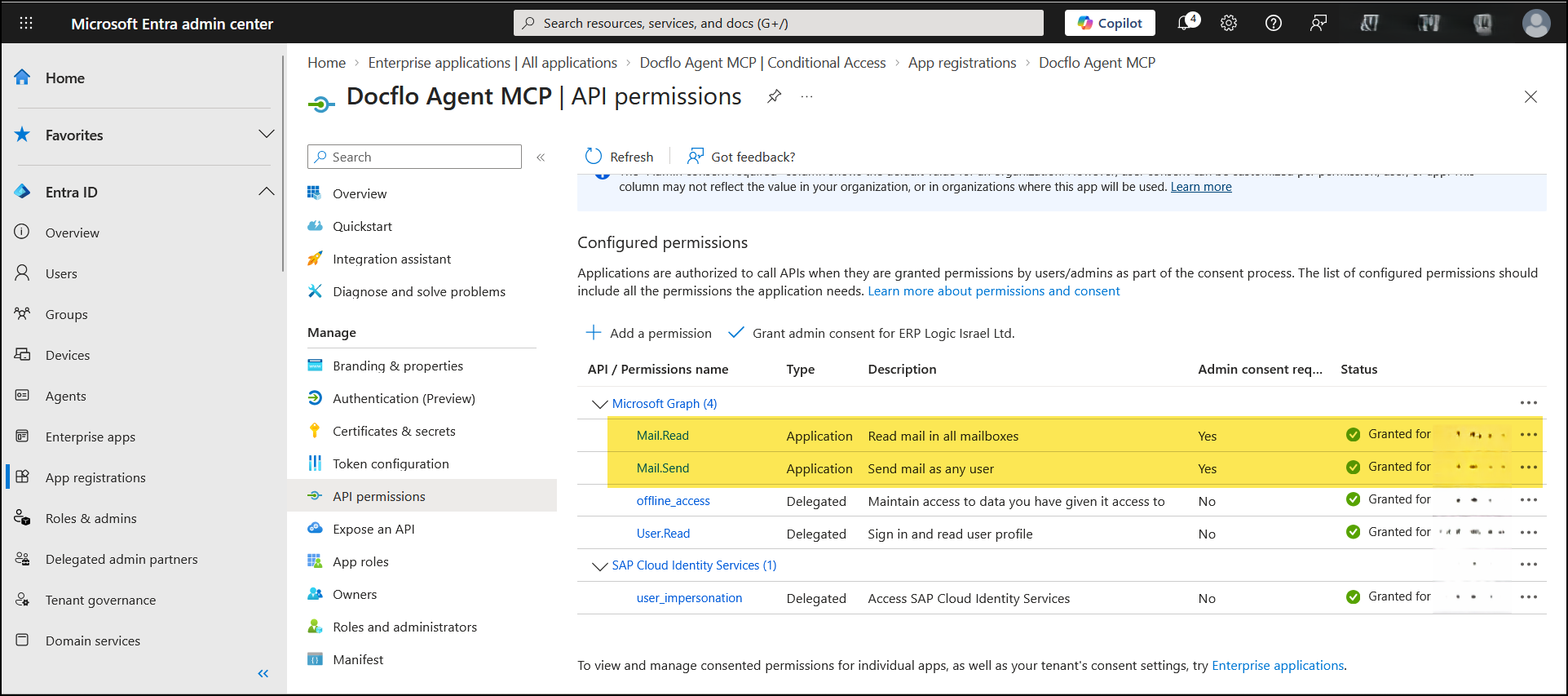
After consent, the app's API permissions page in Entra should show each permission with a green Granted for [your organization] status. The example below shows the mail permissions after consent.
For questions about this setup, contact your Docflo implementation contact.